
Z's Watermark Photos & Videos
photoshop mobile appsVideo Players & Editors
4.5495.00 Reviews
- Version
- 2.7
- Installs
- 500.00K
- Age Rating
- Everyone
Screenshots
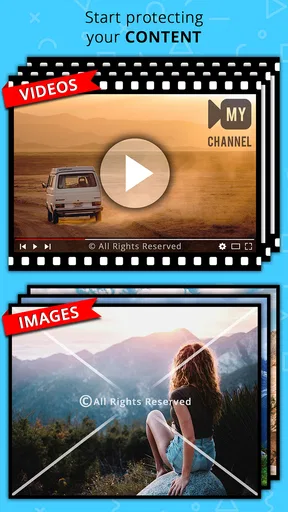
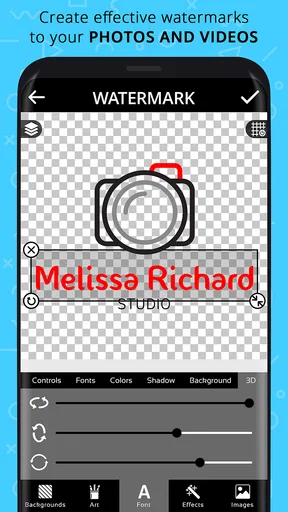
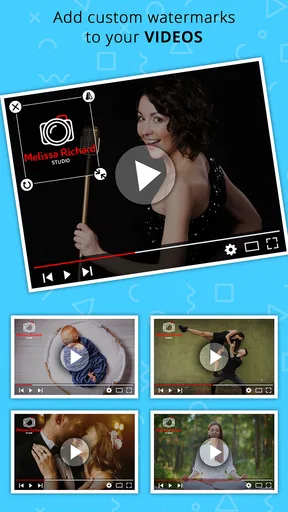
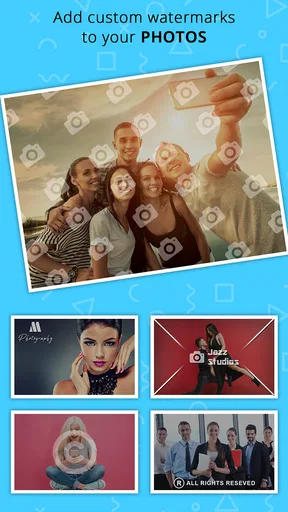
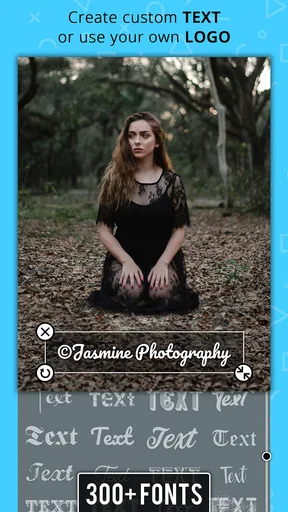
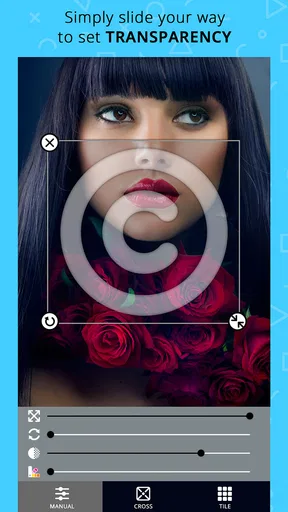
Our Review of Z's Watermark Photos & Videos
 Analysis by Appyee
Adding a watermark sounds simple until you need the same mark to look right on a portrait, a landscape photo, and a short video. That is where Z's Watermark Photos & Videos caught my attention. It is a free Android app in the video players and editors category from photoshop mobile apps, built around creating and applying customizable watermarks to visual content. I found it more useful as a focused finishing tool than as a complete photo or video editor.
My overall impression is practical rather than flashy. The app is aimed at people who want to protect their work, identify social posts, or add a small business mark without opening a full desktop editor. It has a 4.5 average from around 23 thousand ratings and has passed half a million installs, so it clearly appeals to a sizable group of users. I would still judge it by the workflow rather than those figures: it is most valuable when watermarking is the task you need to finish quickly.
What the app feels like in everyday use
The first thing I would clarify is its role. This is not the app I would choose for color grading, trimming a complex project, building a slideshow, or replacing a full creative suite. Its purpose is narrower: prepare a watermark, adjust how it looks, and place it on photos or videos. That narrower focus can be a strength because you are not forced through a long editing timeline just to add a logo or text.
I can imagine using it after taking product photos for a small online shop. Rather than editing each image from scratch, I would prepare a recognizable mark, keep it away from important details, and export versions ready for posting. The same approach works for a photographer sharing previews, a tutor labeling instructional clips, or a family member adding a name to event pictures before sending them around.
The customization matters more than the basic ability to place text. A watermark that is too large makes an image unpleasant to view, while one that is too faint or badly positioned is easy to ignore. I would treat the watermark as part of the composition: use a corner for unobtrusive branding, a central position only when protection matters more than presentation, and enough contrast to remain visible after an image is compressed by a social platform.
One useful habit is to create a few versions of the same mark for different situations. A dark logo may work on a bright product shot but disappear against a night photo. A pale version can solve that problem, while a smaller text-only mark may be better for casual images. The app becomes more practical when I think of these as reusable visual tools rather than changing settings randomly for every file.
Speed expectations when the job is small
For a single photo or a short clip, a dedicated watermarking workflow should feel less demanding than opening a full editor, importing media, creating a layer, and exporting again. That is the main speed advantage I see here: fewer creative decisions and less interface clutter. When I only need to identify an image before sharing it, a focused tool is more convenient than a large editing package.
That does not mean every task will be instant. Exporting video naturally involves more work than saving a still image, and the original file’s size, resolution, and length can affect how quickly the process finishes. I would avoid judging the app by a single quick photo export and then assuming the same experience with a long, high-resolution recording.
My practical tip is to test the watermark on one representative file before processing a whole folder or batch of clips. Choose an image with both light and dark areas, or a video containing a change in lighting. This reveals whether the mark remains readable and whether its placement still looks sensible across the material. It also prevents wasting time exporting a set that needs to be redone.
The free starting point makes that test easy. The app is listed as free, while in-app purchases range from a few dollars to several dollars per item. I would explore the basic workflow first and only consider spending money after confirming that the customization and export process fit my routine. A paid option is easier to justify when it removes a genuine limitation in regular use, not merely because the app offers extra controls.
Where heavier use changes the experience
The difference between watermarking a handful of photos and preparing a large collection is important. With many files, consistency becomes harder than the first export. I would keep the mark’s proportions, padding, and relative position in mind rather than judging only by how it looks on one image. A placement that seems perfect on a square picture may crowd the edge of a tall portrait.
For video, I would plan the workflow before starting. Confirm the source clip, choose a watermark that will not cover subtitles or faces, and preview enough of the result to catch an obvious placement problem. A watermark can be technically present yet still fail its purpose if it blocks useful content or becomes unreadable whenever the background changes.
Heavy use can also expose the trade-off between convenience and control. A specialized app saves me from using a complicated editor, but I would not expect it to replace the precision of a layered desktop workflow for a professional campaign. If I needed different marks at different moments, detailed animation, masks, or a carefully timed logo reveal, I would move to a more advanced video editor instead.
For ordinary social clips, however, restraint is usually better. I would use a modest size and place the mark where platform controls are unlikely to cover it. A lower corner may look natural in the editor but become hidden by interface buttons after uploading. That is a small workflow detail, yet it is one of the main reasons a watermark can appear successful locally and ineffective online.
Reliability and recovering from mistakes
My definition of reliability here is not only whether the app opens. It is whether I can recover easily when I choose the wrong file, dislike the placement, or decide that the exported result is too distracting. The safest approach is to keep the original media untouched and treat every watermarked version as a separate output. That gives me a clean fallback if an edit looks poor after compression or cropping.
I would also avoid processing irreplaceable material until I had checked a sample. Watermarking is usually reversible only if the original remains available; once a mark is baked into an exported photo or video, removing it cleanly is a different editing problem. This is especially relevant for videos, where a bad position can remain visible from beginning to end.
The app’s current version is 2.7, and it has been available since August 5, 2018. That history suggests an established product rather than a brand-new experiment, but I would still keep expectations realistic across different phones. Android devices vary widely in storage, memory, display size, and processing power. A workflow that feels smooth on a newer phone may require more patience on an older one.
If an export appears to take longer than expected, I would first check the simple causes: close other demanding apps, make sure there is enough free storage, and avoid repeatedly starting the same export. I would not interrupt a process casually if the device appears busy. If something does go wrong, returning to the original file and trying a shorter clip or smaller test image is more sensible than repeatedly reprocessing the full project.
Another recovery habit is to name or organize outputs clearly. Keep the source and finished files distinguishable, especially when testing several watermark positions. This is not a glamorous feature, but it prevents the common mistake of uploading an unfinished version or overwriting the clean original with a mark that later proves too strong.
Device constraints that matter more than the app’s age rating
The app supports Android 7.0 and newer, and its content rating is Everyone. That makes it accessible to a broad range of Android users, including people who do not need a specialized professional setup. Still, operating-system compatibility is only the starting point. The phone’s available storage and ability to handle larger media will matter more when working with videos.
Photos are generally easier to manage because they are smaller and finish processing sooner than long recordings. Video work can be more demanding, particularly when the source is high resolution or lengthy. I would not fill the device with multiple temporary exports while experimenting. Keeping only the versions I need makes it easier to see which file is final and leaves room for the app to complete its work.
Screen size also affects precision. On a smaller display, a watermark may appear correctly placed while sitting closer to the edge than intended. I would zoom in when checking a still image and inspect the full frame before saving. For a video, I would check both the beginning and later scenes because the background can change how visible the mark feels.
There is also a quality trade-off to consider. Any export workflow can become disappointing if the finished file looks softer or less suitable for sharing than the source. I would compare the result at full size before deleting anything, especially for portfolio images or product photos. If preserving maximum control over resolution and compression is the priority, a desktop editor or a more advanced mobile editor may be a better fit.
People using iPhones should note that this particular listing is an Android app. I would not assume that installing it on another platform is possible simply because the task itself is common on both systems. Android users meeting the minimum operating-system requirement are the natural audience for this version.
Three workflows that make the focused design worthwhile
First, prepare a brand mark before a busy posting day. I would create a clean version with enough contrast, test it on a light and dark image, and keep the finished style consistent. This avoids making design decisions while rushing to publish several product shots. The important insight is that consistency often looks more professional than a larger, more aggressive watermark.
Second, use different placement logic for photos and videos. A still image gives the viewer time to notice a mark, while a moving clip may put changing subjects behind it. For video, I would favor a position that stays useful without covering faces, captions, or demonstrations. If the subject moves through that area, I would reconsider the location rather than simply increasing opacity or size.
Third, make a small test export part of the process. This is particularly valuable when the file will be posted elsewhere. Social services may crop, resize, or compress the result, so a watermark that looks balanced in the original may become too faint or too close to an edge later. Testing first costs less time than correcting an entire set.
A fourth workflow is useful for personal media: add a subtle identifier to shared event photos without making them look like advertisements. I would keep the mark small and place it where it does not compete with the people in the frame. That is a situation where the app’s customization is more useful than maximum protection.
When I would choose another editor
I would recommend this app to someone who wants a straightforward watermarking step, not to someone searching for an all-purpose creative studio. If your work depends on layers, masks, retouching, audio editing, transitions, animated logos, or detailed export controls, a full photo or video editor will likely save frustration in the long run.
I would also hesitate if you need a strictly automated professional pipeline for a large archive. A focused mobile app can be convenient for occasional work, but a desktop solution may be better when naming, sizing, placement, and output quality must be controlled across hundreds of assets. The convenience of a phone does not automatically outweigh the organizational benefits of a larger workflow.
On the other hand, a full editor can be excessive for a creator who only needs a logo or name on a few images before sharing them. In that case, the narrower purpose is exactly the appeal. I would rather use a small tool that keeps the task understandable than navigate a professional timeline for a two-minute job.
The purchase structure is another reason to try before committing. Since the app is free to start and offers individual in-app items priced from $2.99 to $7.99, I would first identify whether the free experience handles the kind of watermark I actually need. Someone who only adds a simple mark occasionally may find the free entry point sufficient, while a frequent user should weigh the cost of extras against the time saved.
My performance verdict
After looking at the app as a working tool rather than a headline feature, I see a sensible choice for Android users who regularly need to brand or identify photos and videos without opening a heavyweight editor. Its strongest performance quality is task focus: fewer distractions, a clear purpose, and a workflow that suits quick preparation before sharing.
I would describe its resource demands cautiously. Still images should be the easier workload, while larger or longer videos deserve more patience and a test-first approach. The app’s Android 7.0 minimum makes it usable on older supported devices, but the phone’s own storage and processing ability will influence the experience. Keeping originals, closing unnecessary apps, and checking a sample export are simple habits that make the process safer.
My final recommendation is conditional but positive. Choose it if your need is customizable watermarking and you value a focused mobile workflow. Skip it if you expect a complete editing suite, advanced video compositing, or highly automated batch production. For the right user, Z's Watermark Photos & Videos is a practical finishing step: not a replacement for every editor, but a convenient way to put a considered, readable mark on media before it leaves your phone.
Verdict
Strengths of Z's Watermark Photos & Videos
- Adds watermarks to photos and videos in just a few taps.
- Supports custom text, logos, colors, and watermark positioning.
- Batch processing helps brand multiple files more efficiently.
- Useful for protecting original content before sharing online.
- Simple interface makes basic watermarking accessible to beginners.
Limitations of Z's Watermark Photos & Videos
- Some advanced editing and branding options may require a subscription.
- Large video files can take longer to process and export.
- Watermarks may need manual adjustment for different aspect ratios.
- Export settings may reduce quality or increase the final file size.
- The app may request access to personal media and storage.
Similar Picks in This Category
View All
Google TV
Google LLC3.9

iTunes
Apple4.7

YouTube
Google LLC3.8

MX Player
Amazon Mobile LLC4.2

CapCut - Video Editor
Bytedance Pte. Ltd.3.5

PLAYit-All in One Video Player
PLAYIT TECHNOLOGY PTE. LTD.4.5
Frequently Asked Questions
What is Z's Watermark Photos & Videos used for?
Z's Watermark Photos & Videos is designed to help you add a visible watermark to your images and videos before sharing or publishing them. It can be useful for photographers, creators, small businesses, and social media users who want to place a name, logo, copyright notice, or other branding element on their content to make ownership clearer and discourage unauthorized use.
Can I customize the watermark on photos and videos?
The app is intended to provide customization options for watermark placement and appearance, allowing users to adjust elements such as text, image or logo, size, transparency, and position. Before downloading, it is worth checking the current app listing and trying the available editing controls, since supported formats, styling tools, and the level of customization may vary between versions and devices.
Does Z's Watermark Photos & Videos support both photos and videos?
Yes, the app is specifically presented as a tool for watermarking both photos and videos. This makes it more convenient than using separate applications for each type of media. However, video processing can take longer and may depend on the clip’s resolution, duration, and your phone’s performance. Export options and supported file formats should also be checked before processing large projects.
Is Z's Watermark Photos & Videos free to download and use?
The application may be available to download at no initial cost, but free versions of watermarking tools can include advertising, optional purchases, premium features, or limitations on exports. These restrictions may affect available templates, batch processing, video quality, or the removal of branding from the app itself. Review the store page and in-app purchase details before starting regular use.
Are my photos and videos safe when I use this app?
You should review the application’s permissions and privacy policy before importing personal or sensitive media. Some editing apps process files locally on the device, while others may use online services for certain features. Grant only the access that is necessary, avoid uploading confidential content unless you trust the service, and confirm how exported files are stored, shared, or deleted after editing.
